 MyDet Help
👋How it works
A CFAV scans the welfare poster to ask the team to see a cadet. The team sees it live, records every step, prints a one-page report — and then the case is wiped from MyDet.
- CFAV scans the camp poster, types the camp PIN and fills in a short form.
- The request appears on the welfare board within seconds, with a sound.
- Someone picks it up, sends a collector and checks the cadet in.
- The team writes the timeline as things happen.
- Close it with an outcome, print the report (or save it as a PDF), wipe the case. The signed printout or the PDF is the record.
📱For CFAVs: asking for a visit
You'll need your phone and the camp PIN from the CFAV briefing. The PIN isn't on the poster.
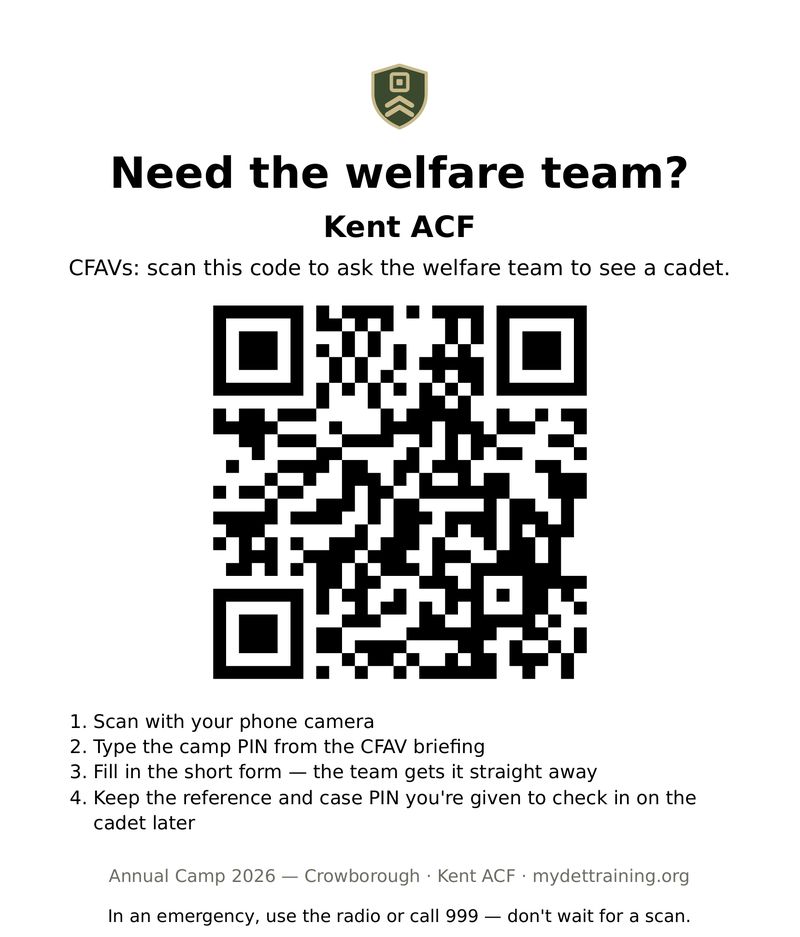
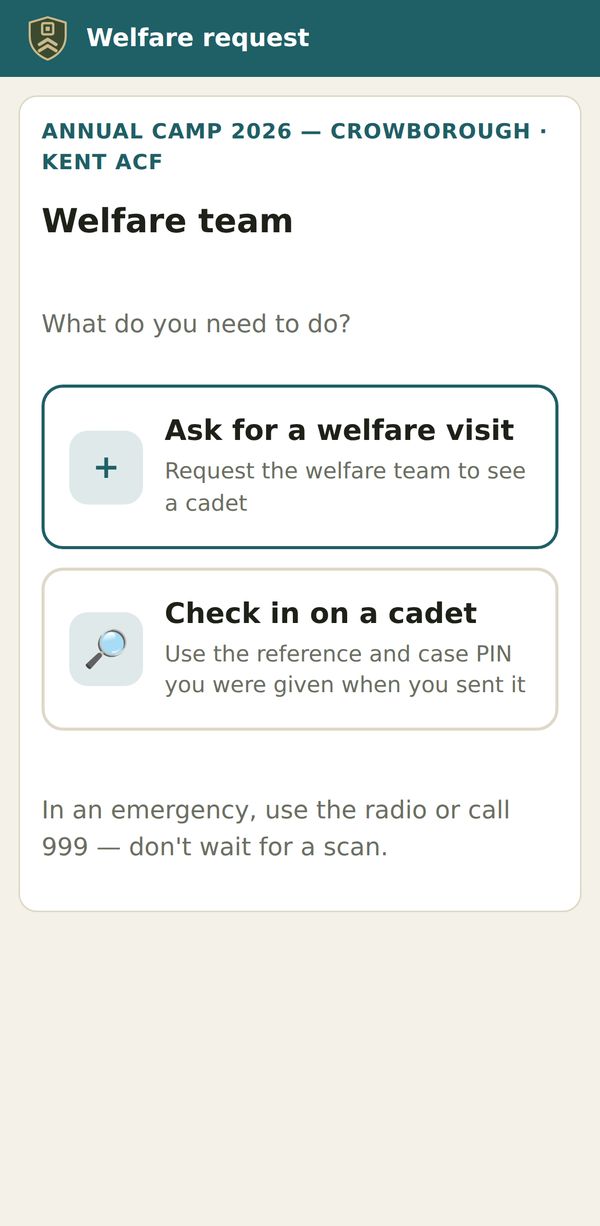
- Scan the welfare poster with your phone camera and choose Ask for a welfare visit.
- Type the camp PIN.
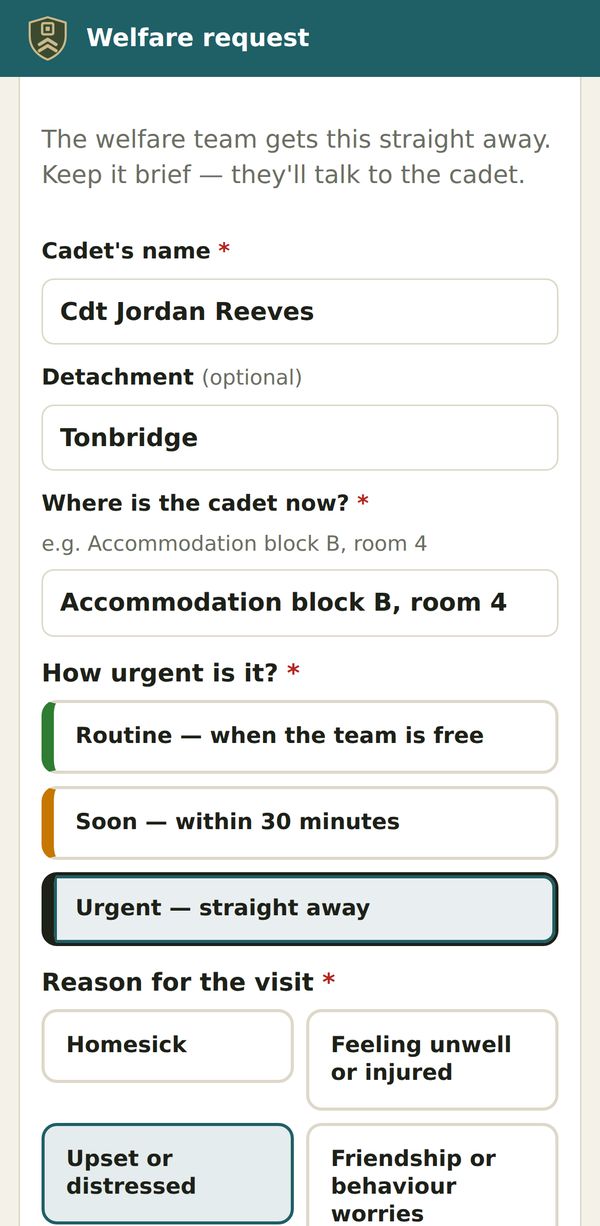
- Fill in the form: the cadet's name, detachment, where they are now, how urgent it is (Routine, Soon or Urgent), the reason, anything the team should know first, and your name and how to reach you.
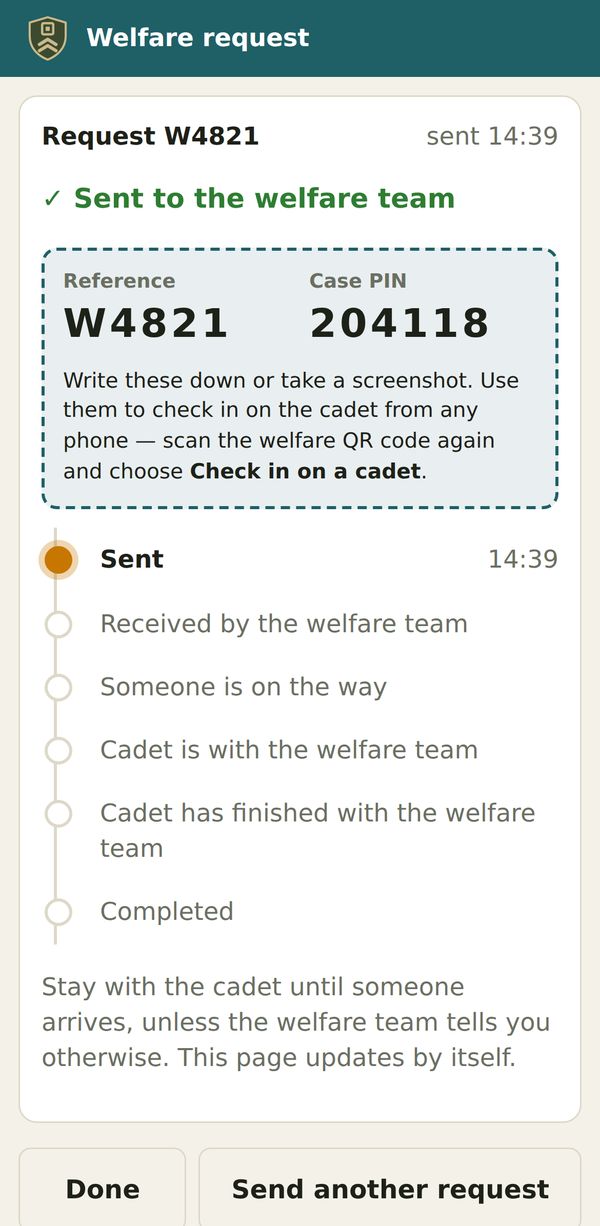
- Press Send request. You're given a reference (like W4821) and a 6-digit case PIN — write them down or take a screenshot.
- Stay with the cadet until someone arrives, unless the team tells you otherwise. The page updates by itself.
Checking in on a cadet later
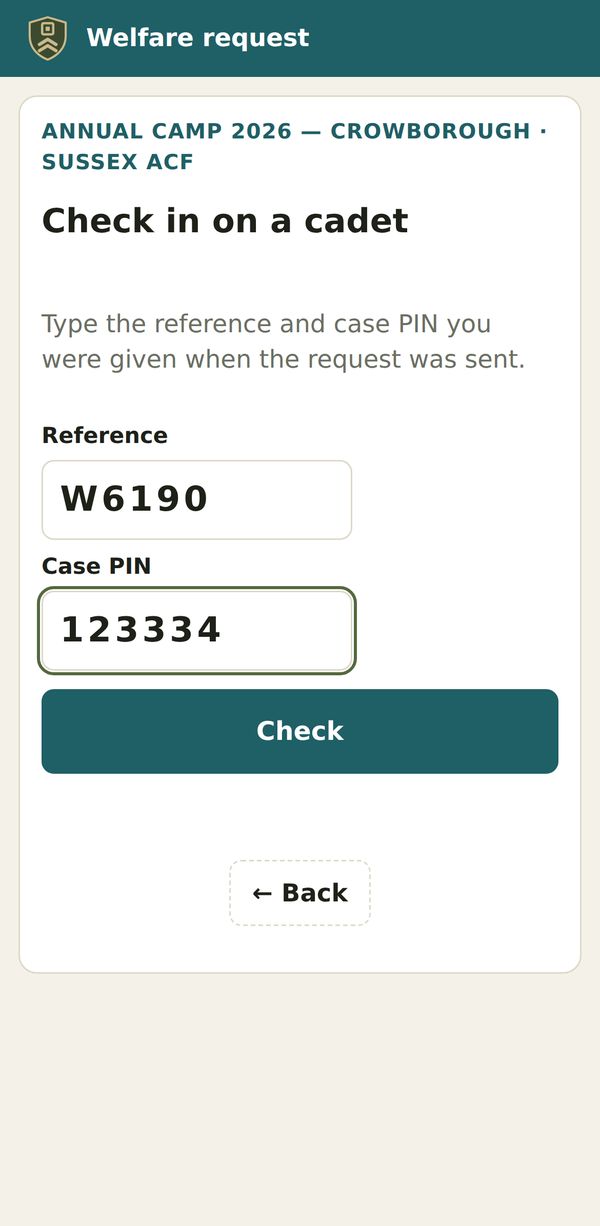
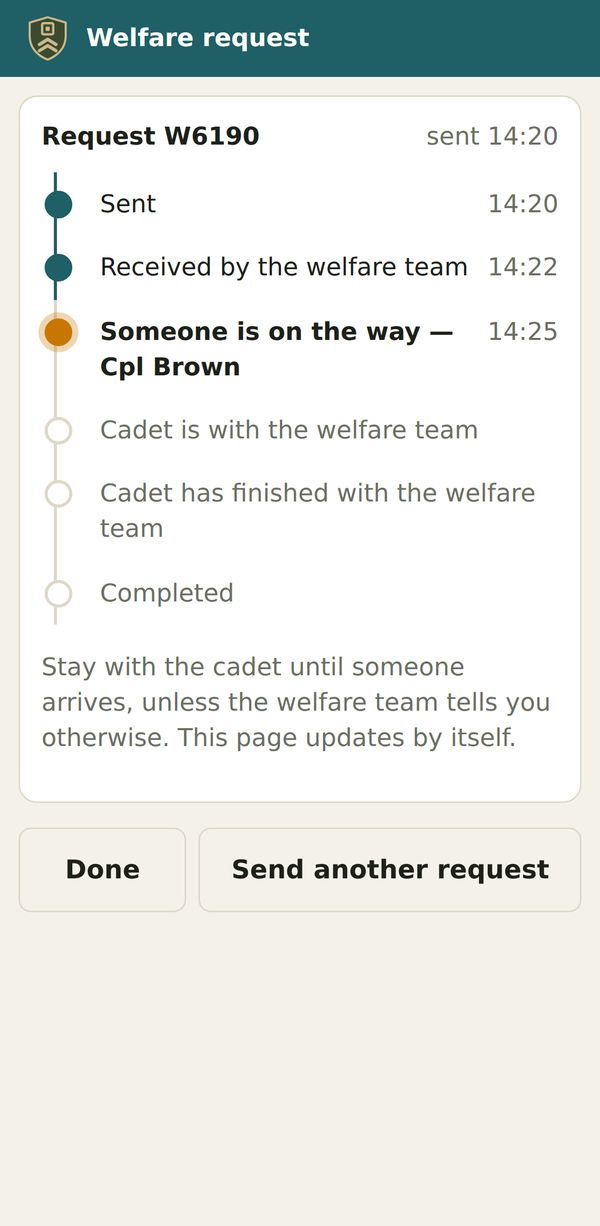
From any phone: scan the poster again, choose Check in on a cadet, and type the reference and case PIN.
You'll see where the case is up to — received, who's on the way, with the welfare team, finished — each with its time.
🔑Getting onto the welfare team
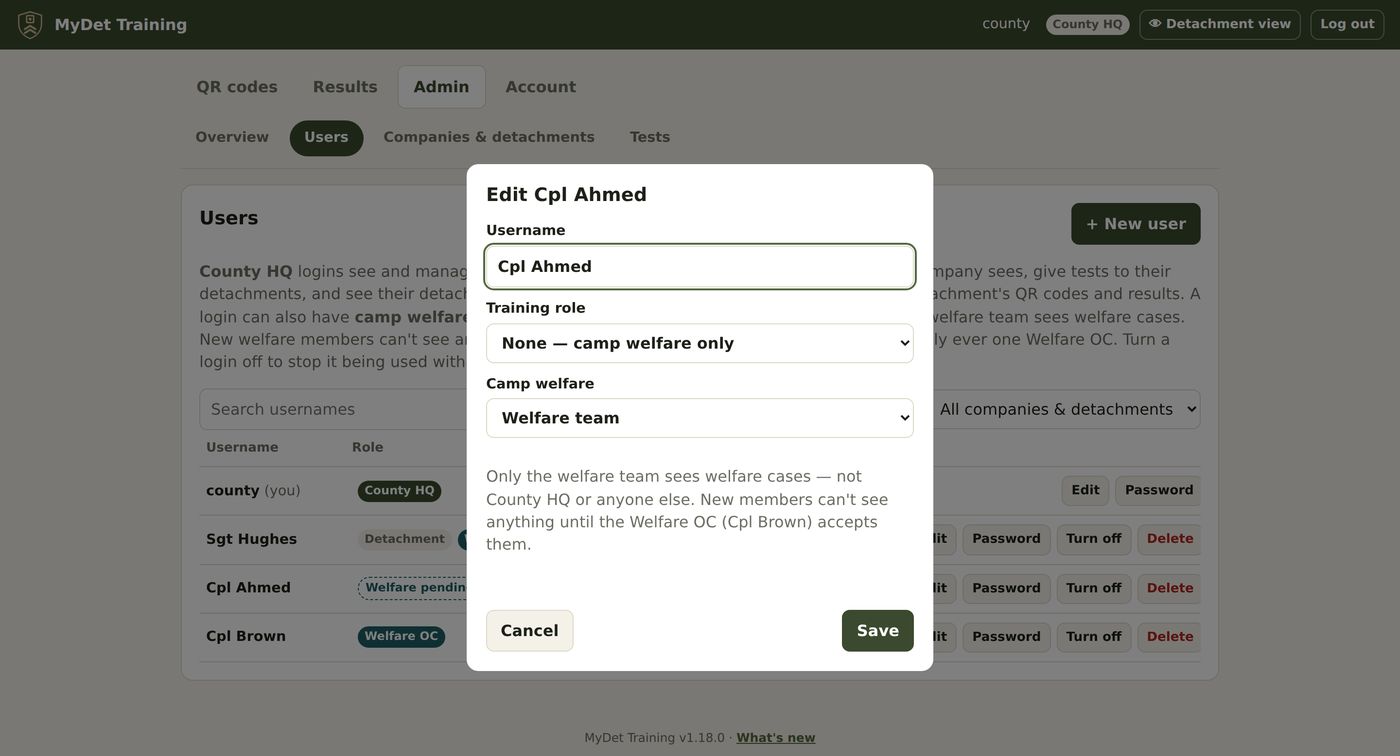
- County HQ gives your login welfare access (My County → Users → My Welfare). You can be a detachment instructor and on the welfare team with the same login.
- Log in at mydet.org.uk. The first time, you'll choose your own password.
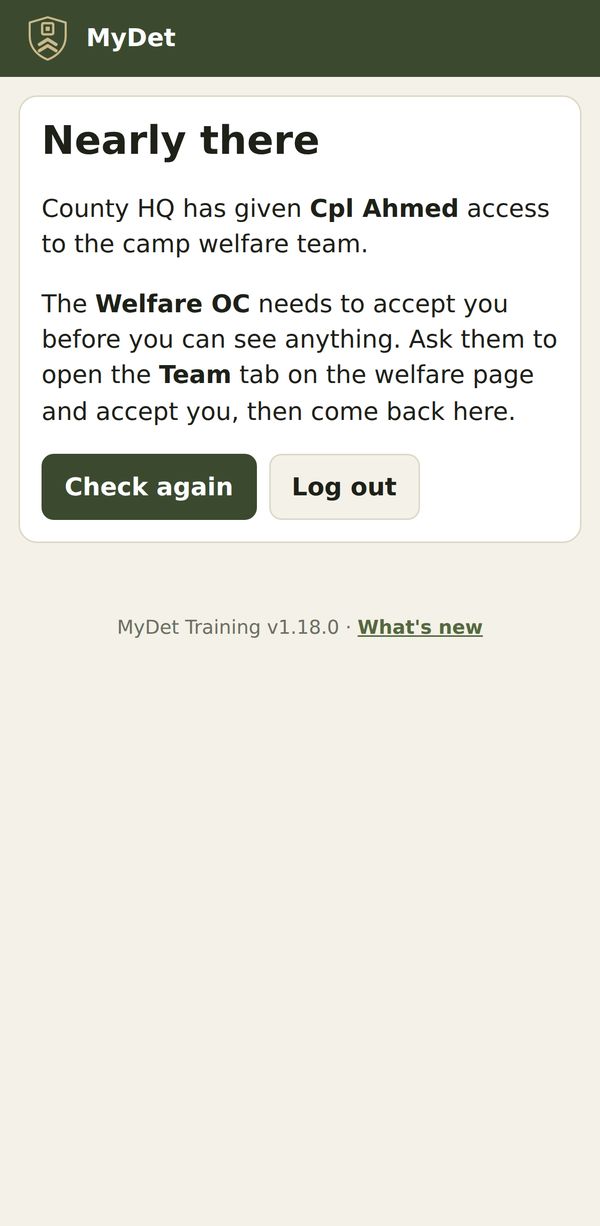
- Until the Welfare OC accepts you, you'll see a “Nearly there” message. Ask them to accept you on the Team tab.
- Once accepted, My Welfare appears on the Where do you want to go? screen after logging in. The ⌂ Home button at the top takes you back to it.
Logging in, passwords (changed every 90 days) and passkeys work the same as for training — see the My Test guide.
🗂The live board
Every open case, one lane per step. New requests appear within seconds.
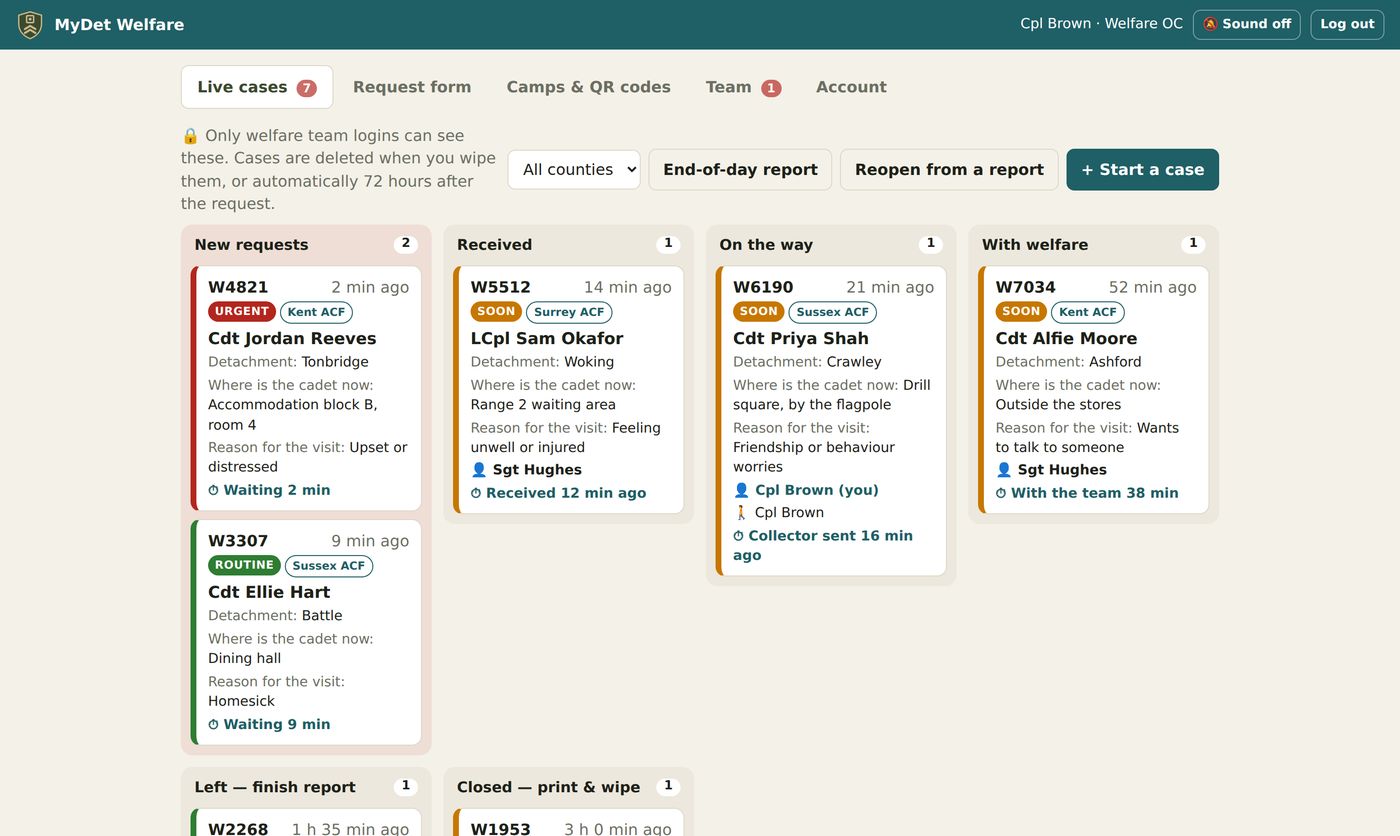
- Colour = urgency: red Urgent, amber Soon, green Routine — from the CFAV's answer.
- ⏱ The time that matters at each step: waiting, collector sent, with the team.
- 👤 Who has it — your own cases say “(you)”. Only they can work on it.
- Tags: the county, Visit 2 for a return visit, Seen today? when the same name is already on the board, Amended.
- County filter for shared camps. + Start a case for a cadet who walks in, or a request by radio.
Alert sound, notifications and keeping the screen on
- Press 🔕 Sound off at the top to turn it to 🔔 Sound on. You'll hear a test chime.
- Allow notifications if asked — you'll get a pop-up when MyDet isn't on screen. It never shows the cadet's name.
- With sound on, MyDet keeps the screen awake while the board is open.

🩺Working a case
Open a case from the board. Opening a new request marks it Received, and you've picked it up.
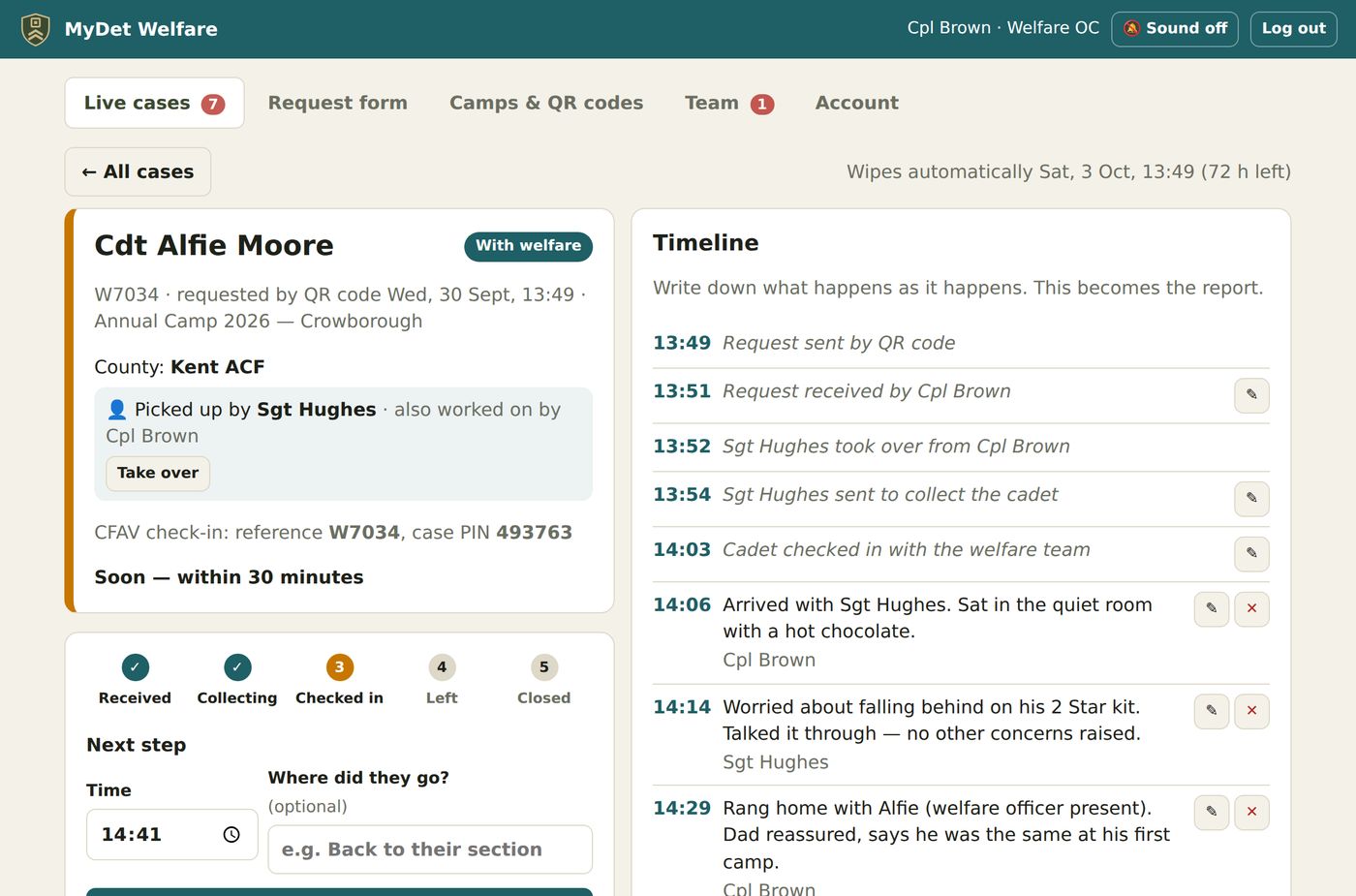
One tap per step
- Send someone to collect the cadet — type who's going. The CFAV's phone shows their name.
- Cadet checked in with the welfare team — the clock for “time with the team” starts.
- Cadet has left the welfare team — when, and where they went (e.g. back to their section).
Each step is time-stamped. Did something happen earlier than you pressed it? Correct the time with ✎ on the timeline. The case works out the response time, time to collect, time with the team and total time for you.
The timeline
Write down what happens as it happens — it becomes the report. Leave the time as now, or change it for something that happened earlier. Each note is signed with your name; edit ✎ or delete ✕ your notes if you need to.
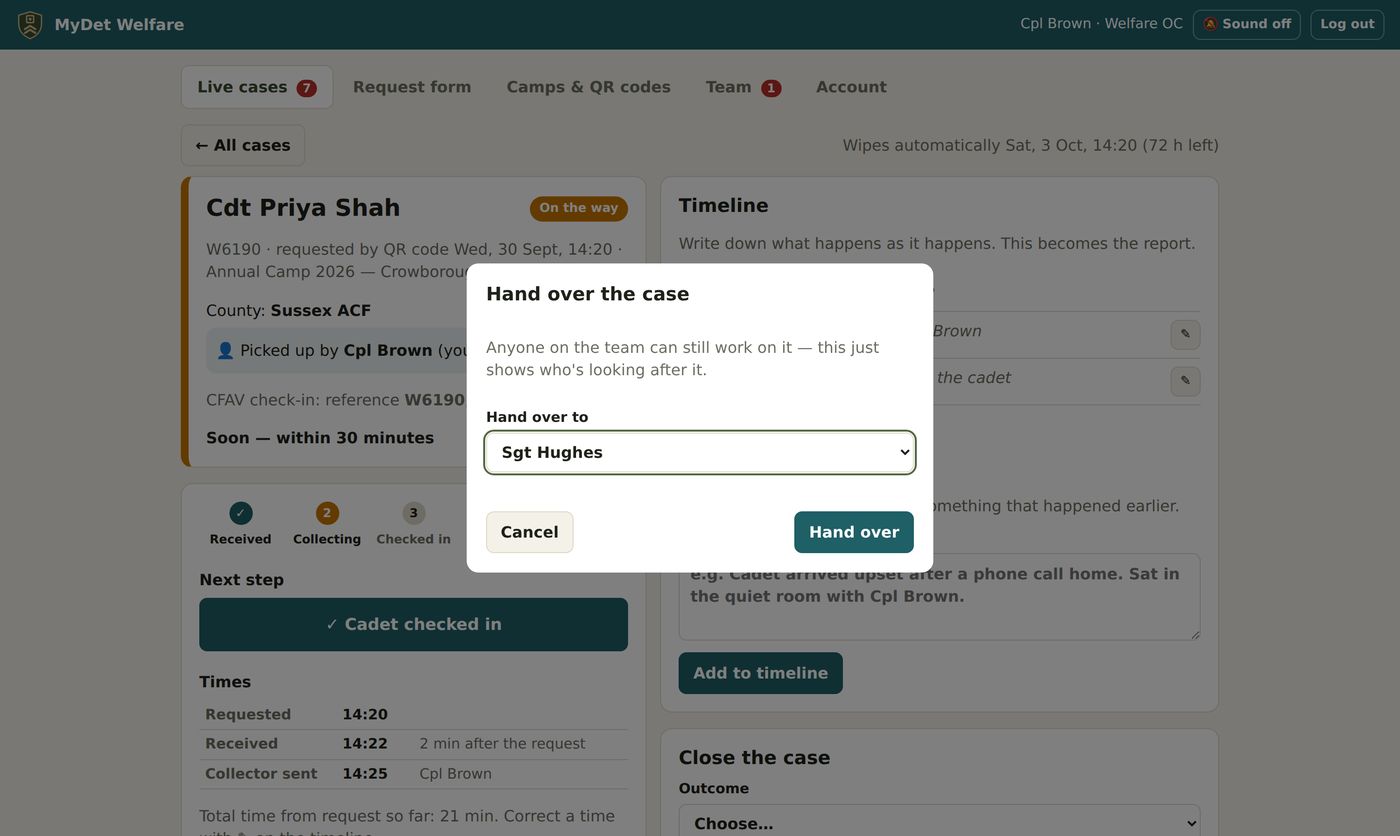
Picking up, taking over and handing over
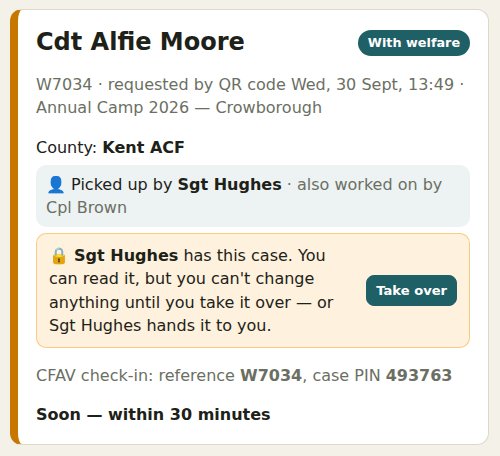
- The case shows who has it and who else has worked on it. Only the person who has the case can work on it — move it on, add to the timeline, edit, close, print, wipe or reopen.
- Everyone else on the team can still read it. To work on it, press Take over — or ask the person who has it to hand it to you.
- Hand over… passes your case to someone else on the team. Taking over and handing over both go on the timeline.
- A case nobody has yet is yours as soon as you open it or do anything on it.
Request details
Got something wrong in the request, or the county? Press Edit on the Request card. The CFAV check-in reference and case PIN are shown on the case, so you can read them out if the CFAV has lost them.
🖨Close, print or save as PDF, wipe
- Close the case: choose the outcome (e.g. Returned to activities, Parent or guardian contacted, Referred on (safeguarding)) and add a summary or follow-up. Closed it too soon? Reopen it — see the next section.
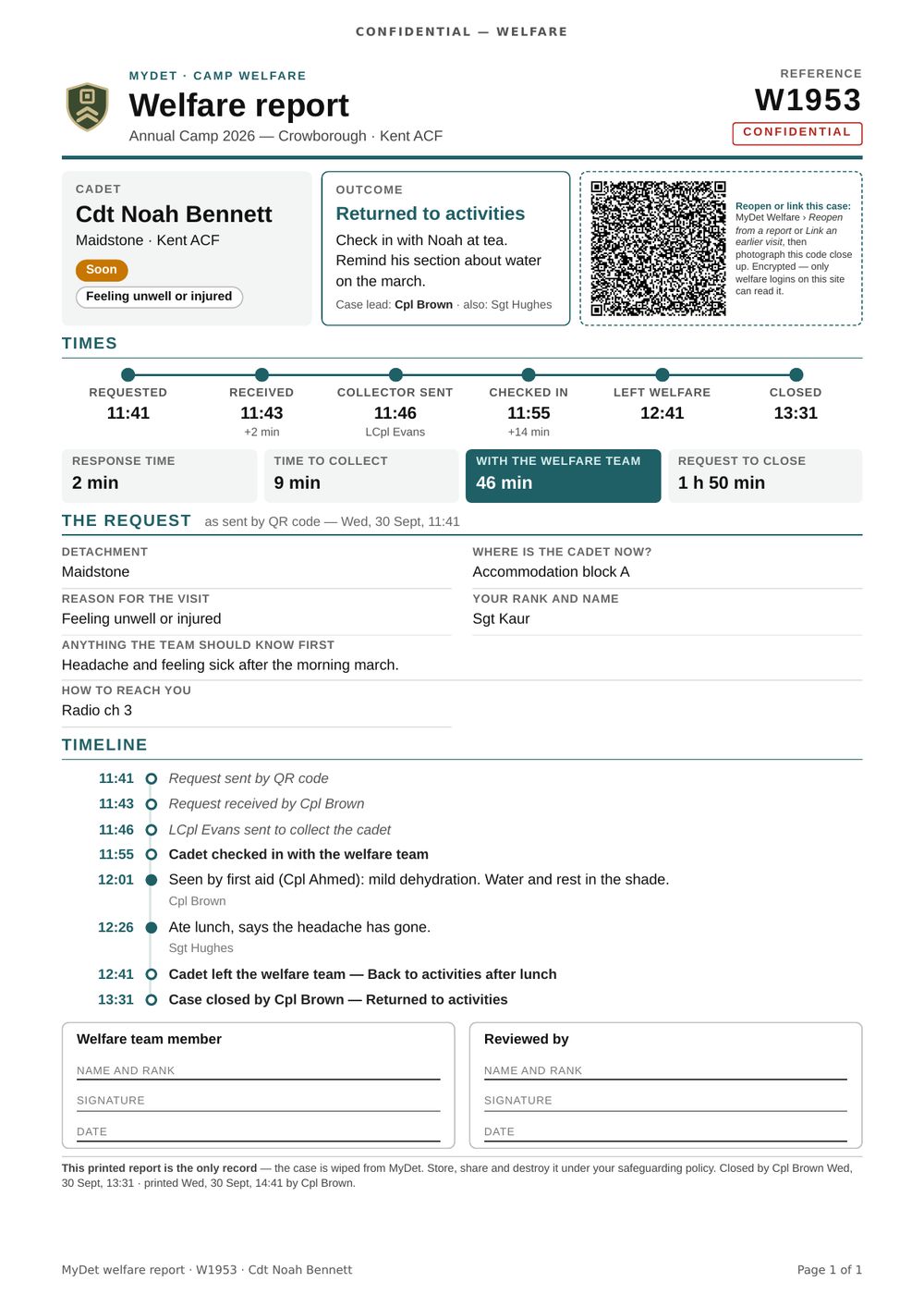
- 🖨 Print report — one A4 page with the request, every time, the full timeline, who led and helped, sign-off boxes, and an encrypted QR code.
- Or 📄 Save as PDF — the same report as an A4 PDF file, made on your device. Handy when there's no printer at camp, or your unit keeps reports electronically.
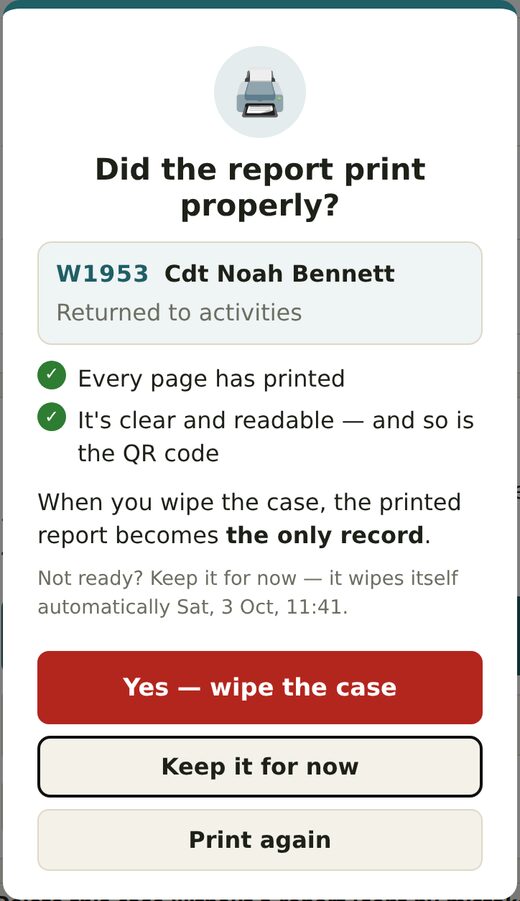
- MyDet then asks “Did the report print properly?” (or “Is the PDF saved?”). Check it, then press Yes — wipe the case. Not ready? Print again, or Keep it for now.
- Sign the report and store it — paper or PDF — under your safeguarding policy. It is now the only record. A PDF has everything the paper does: keep it only where your policy allows, and delete other copies (check Downloads).
🔁Reopening, and cadets who come back
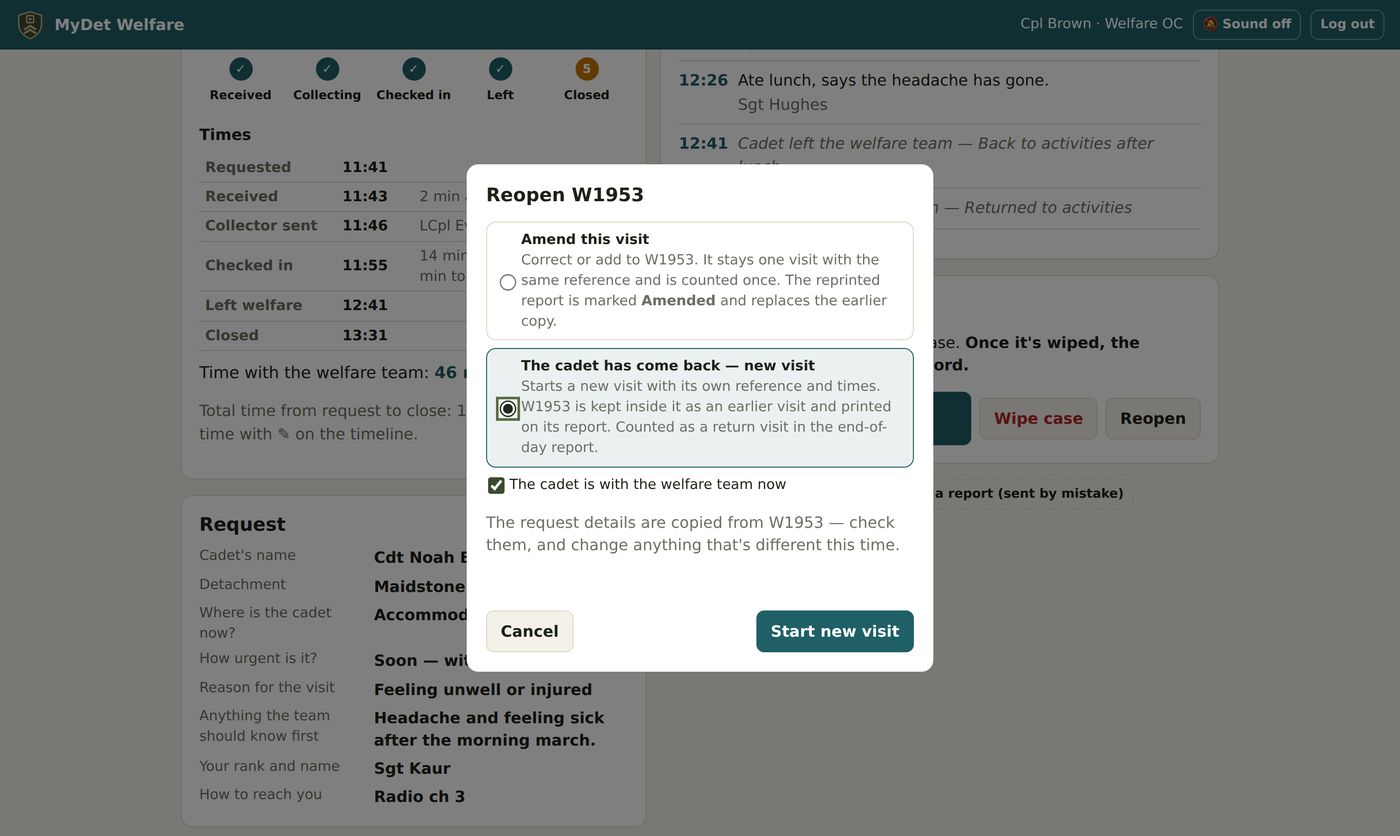
Reopen (on a closed case) and Reopen from a report (on the board, for a case already wiped) both ask why.
| Choose | When | What happens |
|---|---|---|
| Amend this visit | Correcting or adding to the same visit | Same reference, counted once. Note what's being amended — it goes on the timeline. The reprinted report is stamped Amended and replaces the earlier copy. |
| The cadet has come back — new visit | The cadet returns later in the day | A new visit with its own reference and times. The earlier visit is kept inside it and printed on its report, and counts as a return visit. The request details are copied across for you to check. |
Linking an earlier visit
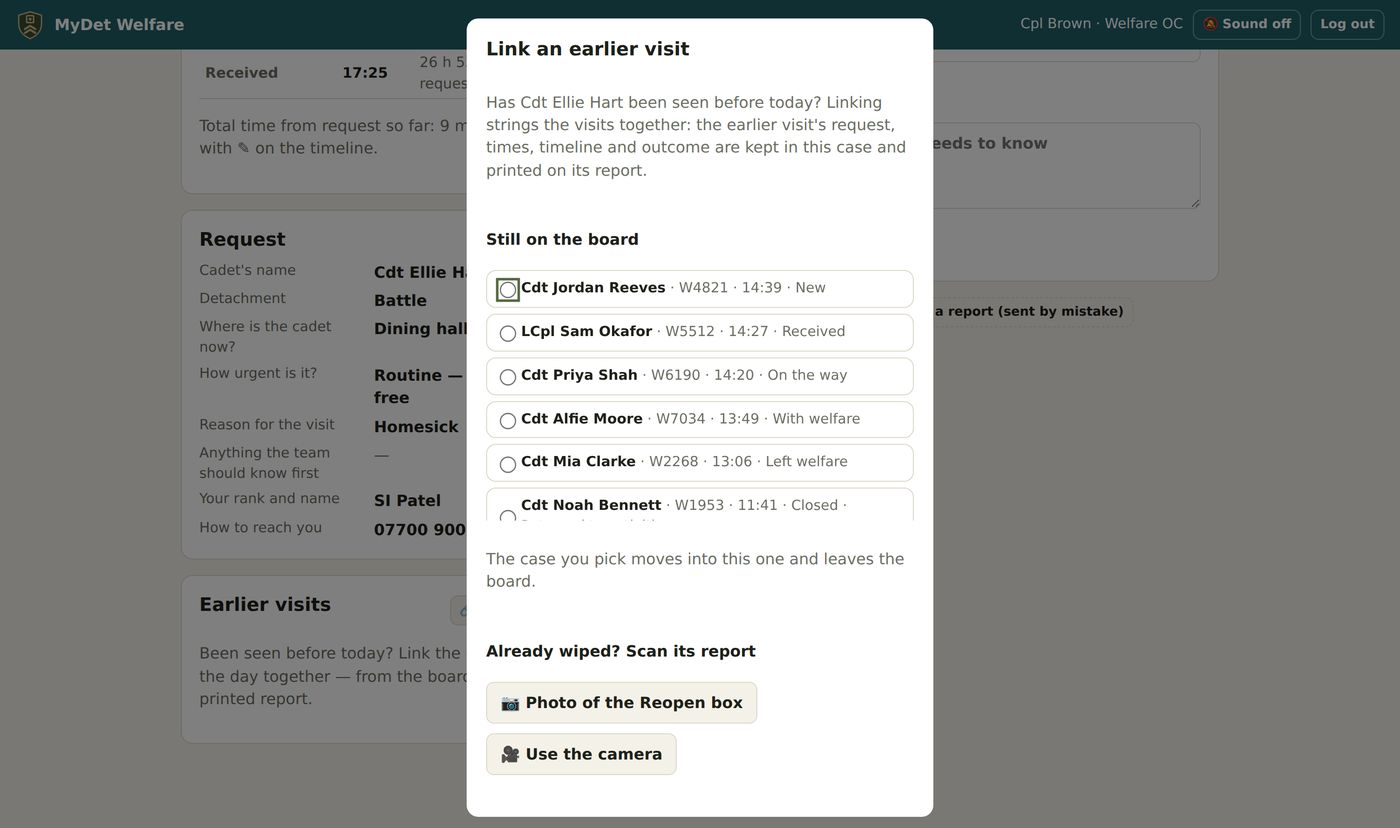
Already started a new case for a cadet who was seen earlier? On the case press 🔗 Link an earlier visit and pick the earlier case from the board (cases with the same name are flagged) — or, if it was already wiped, upload its PDF or photograph the QR code on its printed report.
Using a report: PDF, photo or camera
Reopen from a report and Link an earlier visit read the report three ways:
- 📄 Upload the PDF — a PDF saved from MyDet is read instantly. A report printed to PDF from the browser works too, and so does a scan of the paper report saved as a PDF.
- 📷 Photo of the Reopen box — a close-up photo, in focus and well lit.
- 🎥 Use the camera — hold the report up to it.
- Tapping the QR code in a saved PDF opens MyDet Welfare ready to reopen the case (you'll be asked to log in first).
- The QR code is encrypted: only a welfare login on this site can read it. A phone camera just sees gibberish.
- PDFs and photos are read on your device. They aren't uploaded or kept.
🎯Practice
The Welfare OC runs practice. The Practice tab (the OC's only) lets them test everything with made-up cadets — before camp, or to train someone new. Practice cases go through exactly the same steps as real ones.
- Send a test request — one practice request now, as if a CFAV had scanned the poster. Every team device should beep within 5 seconds: the quickest way to check the sound and notifications work.
- Start the drill — 3 to 12 practice requests arriving one by one over 10 minutes to an hour, like a busy afternoon.
- Try the CFAV form — opens the real request form in practice mode (it says PRACTICE at the top). It still needs the camp PIN. Good for the CFAV briefing.
- End practice — stops any drill and clears every practice case for the whole team.
📋End-of-day report
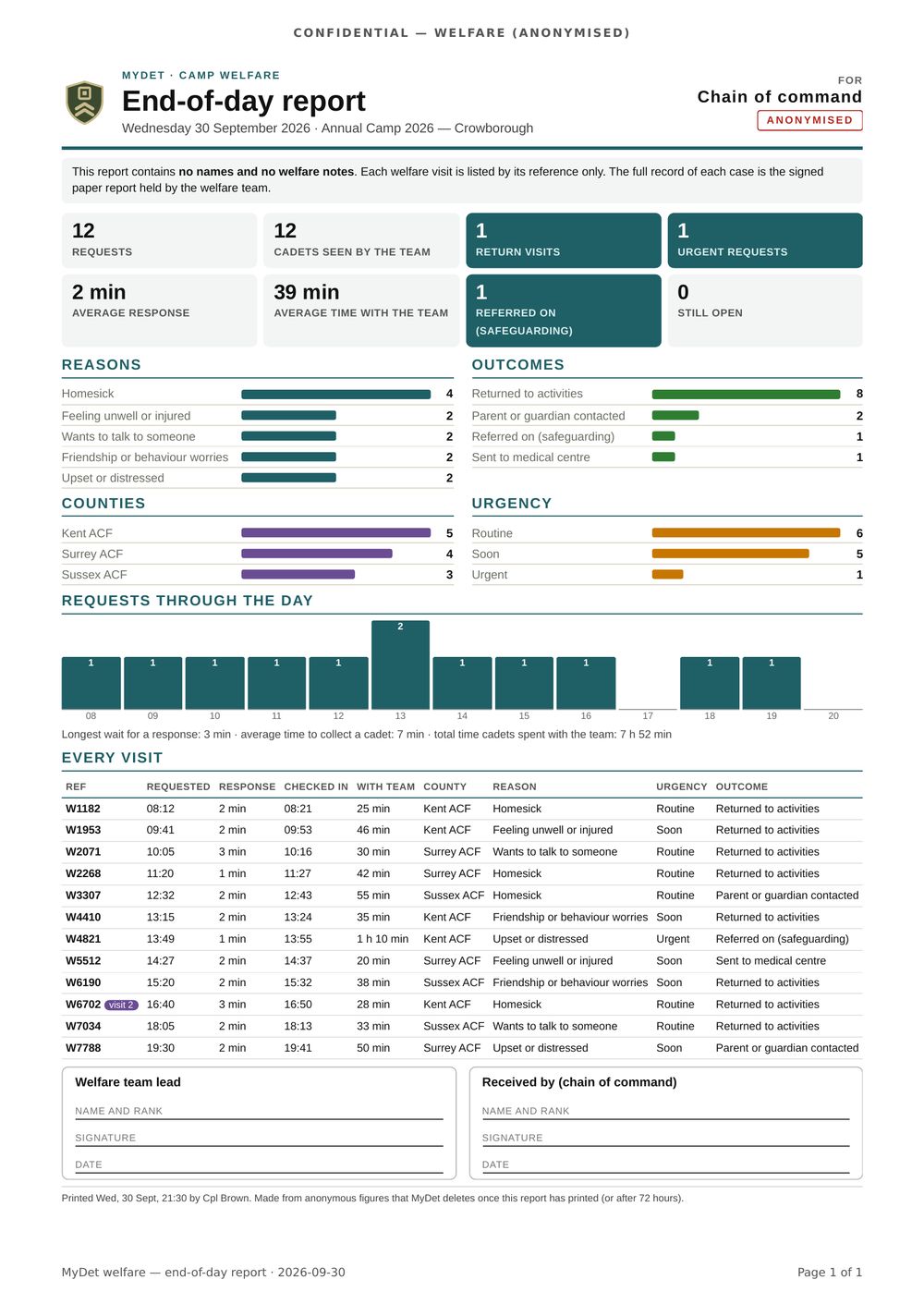
A one-page, anonymised summary of the day for the chain of command — no names and no welfare notes.
- On the board, press End-of-day report.
- Pick the day and check the preview.
- 🖨 Print report.
- MyDet then offers to clear that day's anonymous figures.
It shows the headline figures (requests, cadets seen, return visits, urgent, average response, average time with the team, safeguarding referrals, still open), breakdowns by reason, outcome, county and urgency, requests hour by hour, one line per visit by reference only, and sign-off boxes.
🏕End-of-camp report
A one-page summary of the whole camp for the chain of command — totals only: no names, no welfare notes and no list of visits.
- On the board, press End-of-camp report.
- Pick the camp and check the preview.
- 🖨 Print report (or save it as a PDF from the print window).
- MyDet then offers to delete the camp's totals.
It shows the headline figures for the camp (requests, cadets seen, return visits, urgent, average response and time with the team, safeguarding referrals, still open), requests day by day, breakdowns by reason, outcome, county and urgency, requests by time of day, and sign-off boxes for the Welfare OC and the Camp Commandant.
⭐For the Welfare OC
There is only ever one Welfare OC, set by County HQ. The OC accepts new members, runs practice, can keep a case past 72 hours, and looks after the request form, camps and QR codes.
The Team tab
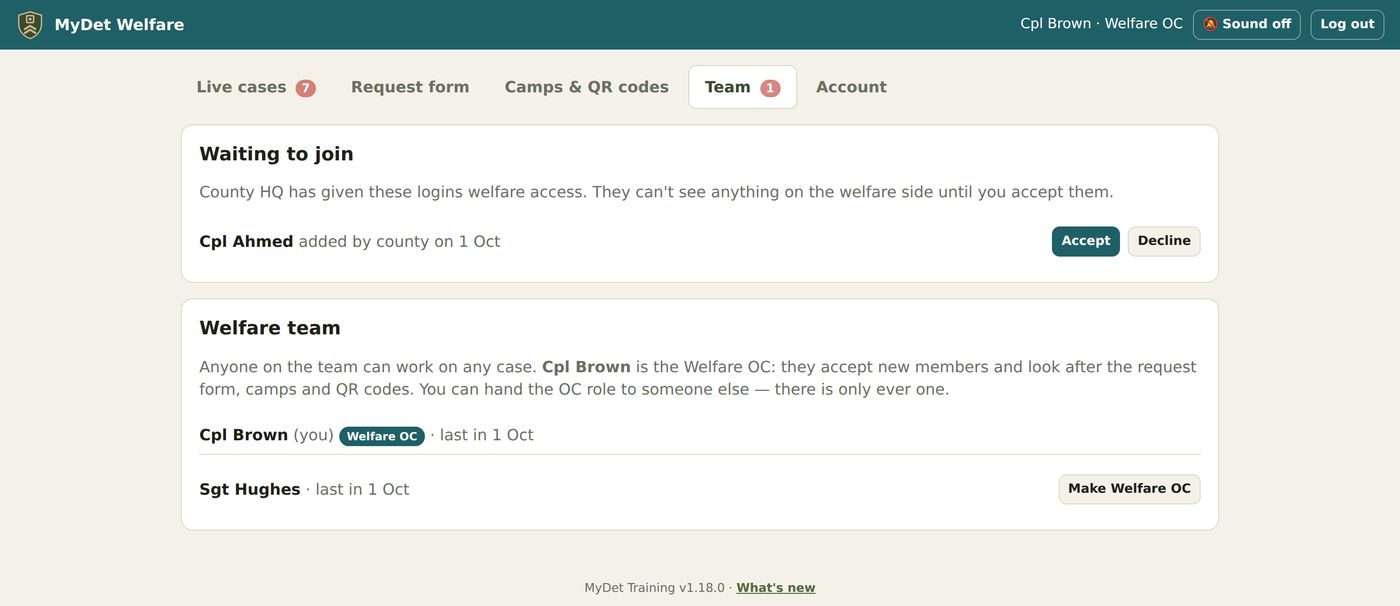
- Waiting to join — logins County HQ has given welfare access. Accept lets them in; Decline takes their welfare access away. A red count on the tab shows people waiting.
- Make Welfare OC hands the OC role to someone else on the team — you become a normal team member.
Camps & QR codes
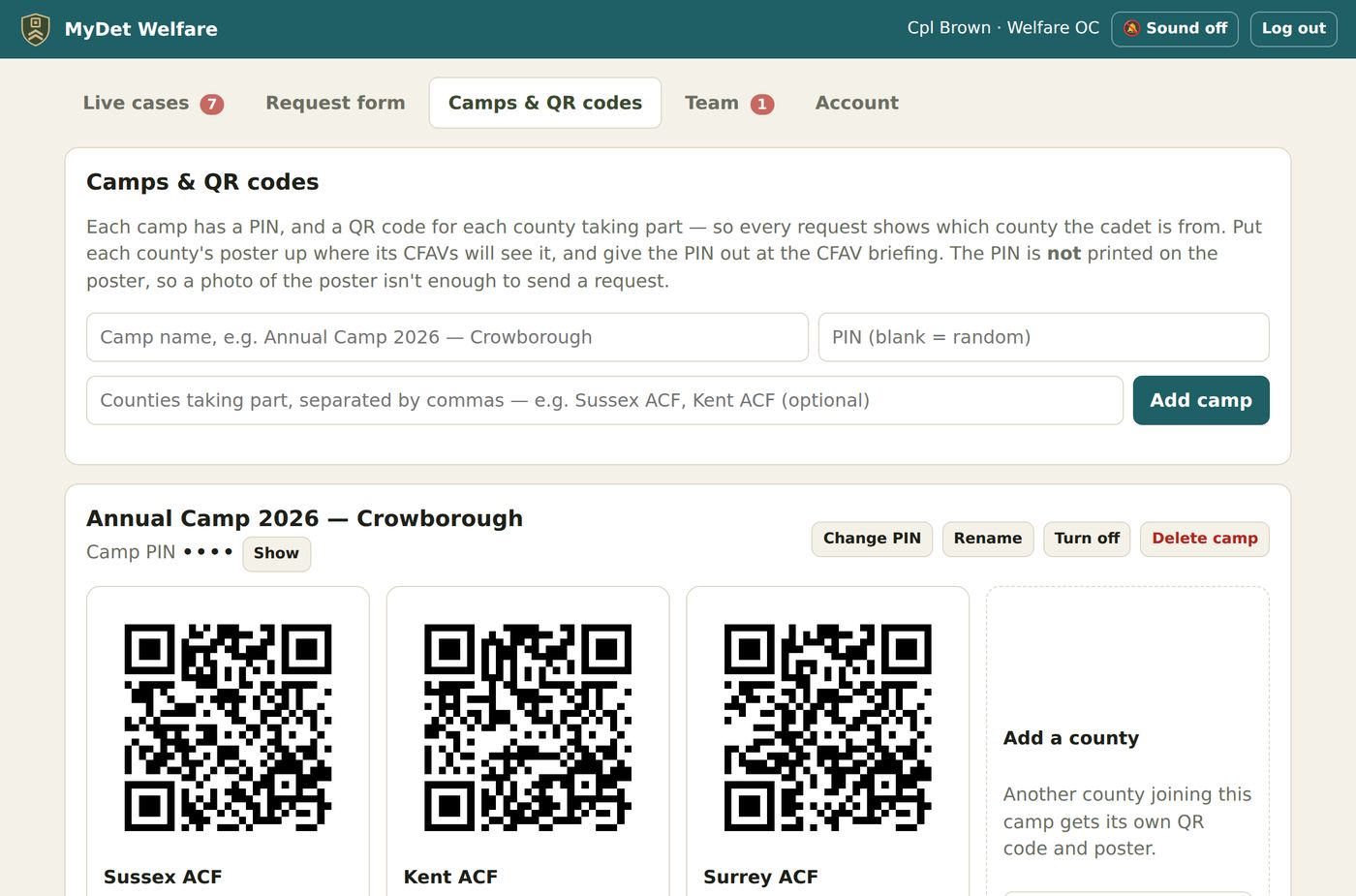
- Under Camps & QR codes, type the camp name, a camp PIN of 4–8 digits (leave blank for a random one) and the counties taking part, separated by commas.
- Press Add camp. Each county gets its own QR code, so every request shows which county the cadet is from.
- Print poster for each county and put them up where its CFAVs will see them.
- Give out the camp PIN at the CFAV briefing.
- Change PIN, Rename, Turn off or Delete camp.
- Per county: rename it, New QR (old posters stop working), turn it off, or remove it. Add a county for one that joins later.
Keeping a case for longer
Cases are wiped automatically 72 hours after the request. If one needs to stay open longer — waiting to hear back from the safeguarding lead, or a cadet still with the team — open the case and press ⏳ Keep longer next to Wipes automatically. Choose 1, 3 or 7 more days and say why (no names). It's never more than 14 days from the request.
- The case shows Kept by with your name, and the reason goes on its timeline (and so on the printed report).
- Keep longer / change adds more time, or puts it back to the usual 72 hours.
- Only the Welfare OC can do this. It stays encrypted, and only the welfare team can see it, as always.
Running practice
Only the Welfare OC sees the Practice tab, so only they send test requests, start drills and end practice. The whole team works the practice cases on the board — see Practice.
The request form
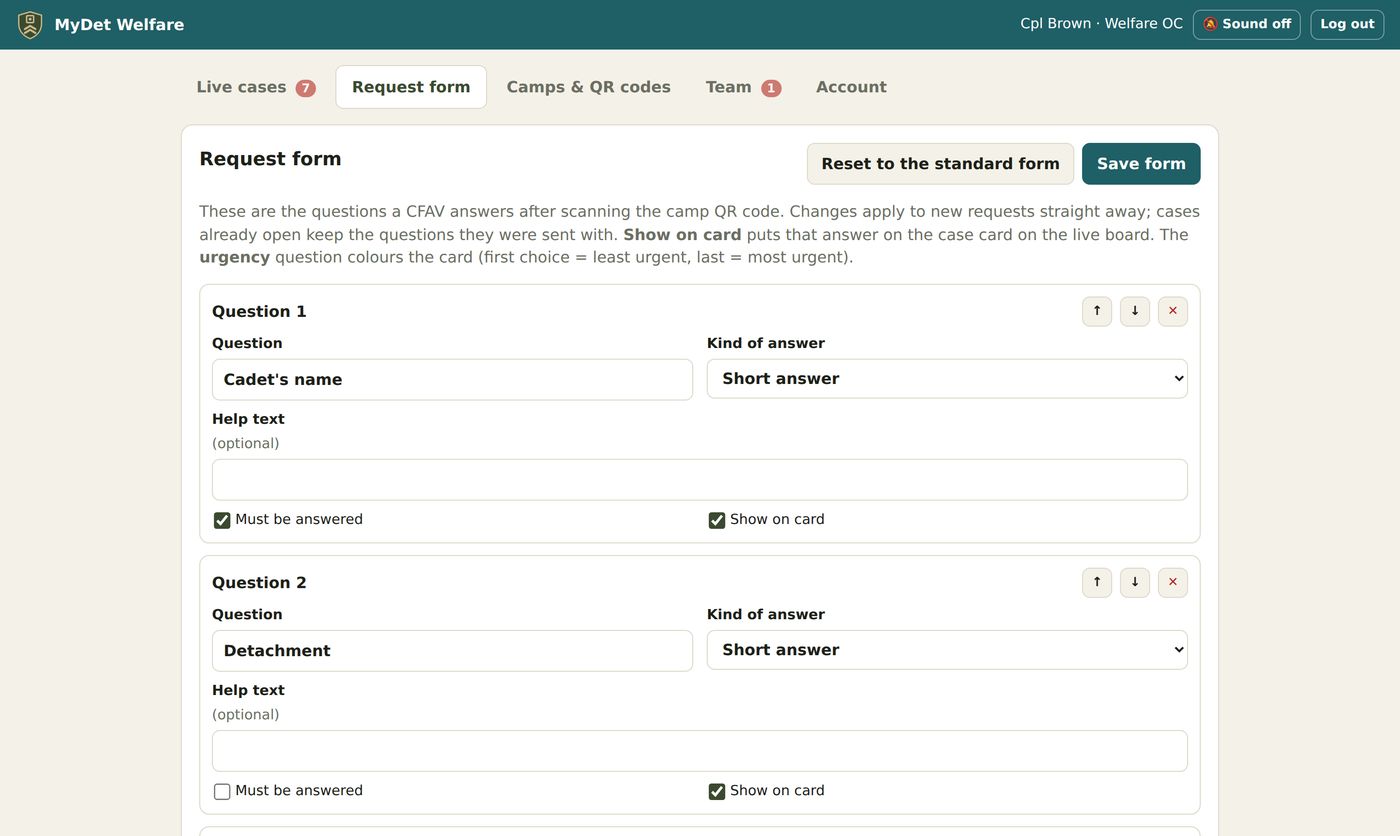
Under Request form, add, reword, reorder or remove the questions CFAVs are asked — short or long answers, choices, yes/no and the urgency question. Tick Show on card to put an answer on the board, and edit the list of outcomes. Changes apply to new requests straight away; open cases keep the questions they were sent with. Reset to the standard form starts again.
🔒Privacy & data
| Who | Can see a case? |
|---|---|
| The welfare team (accepted by the Welfare OC) | Everything, while it's open |
| The CFAV who asked | Progress only — never the details, notes or outcome |
| County HQ | No — gives welfare access, but can't see cases |
| Company HQs and detachments | No |
| Backups and the activity log | Cases are never in either |
| What | Where | Deleted |
|---|---|---|
| An open case | An encrypted temporary file, apart from all other MyDet data | When wiped, or 72 hours after the request (the Welfare OC can keep one for up to 14 days) |
| Anonymous day figures | The same encrypted file | When the end-of-day report is printed, or after 72 hours |
| Camp totals (numbers only) | The same encrypted file | When the end-of-camp report is printed, or 60 days after the camp's last request |
| Printed case report | Paper, held by the welfare team | Under your safeguarding policy |
| Saved PDF report | Wherever it was saved — MyDet doesn't keep a copy | Under your safeguarding policy |
| End-of-camp report | Paper, for the chain of command | Under your records policy |
| End-of-day report | Paper, for the chain of command | Under your records policy |
When a case is wiped, the file is overwritten with random data and deleted once nothing is left in it.
❓Questions & fixes
The alert sound didn't play
Make sure the button says 🔔 Sound on and tap the page once (or the orange bar). Keep the device unlocked and on the board — a locked phone or tablet can't play web sounds. Allow notifications for a pop-up when MyDet is in the background.
A CFAV says the PIN is wrong
Check they're using the camp PIN from the briefing (on the Camps tab, press Show). After 8 wrong tries their phone waits 10 minutes.
A CFAV has lost their reference or case PIN
Both are shown on the case under “CFAV check-in” — read them out.
The QR code on a printed report won't scan
Take the photo close up so the code fills most of the picture, in focus and well lit, with no glare. Scans work too. Got the report as a PDF? Use 📄 Upload the PDF instead — it's more reliable than a photo.
“No report codes found in that PDF”
Check it's the welfare report, not another document. A scan saved in black and white only (fax-style) can't always be read — rescan in colour or greyscale, or take a photo of the Reopen box instead. Password-protected PDFs can't be read.
I can't see the Request form, or change camps
Only the Welfare OC looks after those. Ask them, or ask County HQ who the OC is. Everyone on the team can see the camps and show the camp PIN.
I see “Nearly there — the Welfare OC needs to accept you”
Ask the Welfare OC to open the Team tab and accept you, then press Check again.
We forgot to print a case before it was wiped
Once wiped (or after 72 hours) the case is gone for good — that's the point. Print or save the PDF as soon as a case is closed.
Nothing in this guide matches that. Try fewer or different words.